
Facebook Pixel For Fydelia
You’re not just providing WiFi — you’re converting real-world visitors into trackable, retargetable digital audiences that drive repeat revenue.
Using Facebook Pixel you capture valuable audience data from every WiFi login and use it to power highly targeted Facebook and Instagram ads.
Five Step Enablement
Below are the five steps, carried out by Client jointly with Fydelia, to enable Facebook Pixel.
Step 1: Find Your Business ID
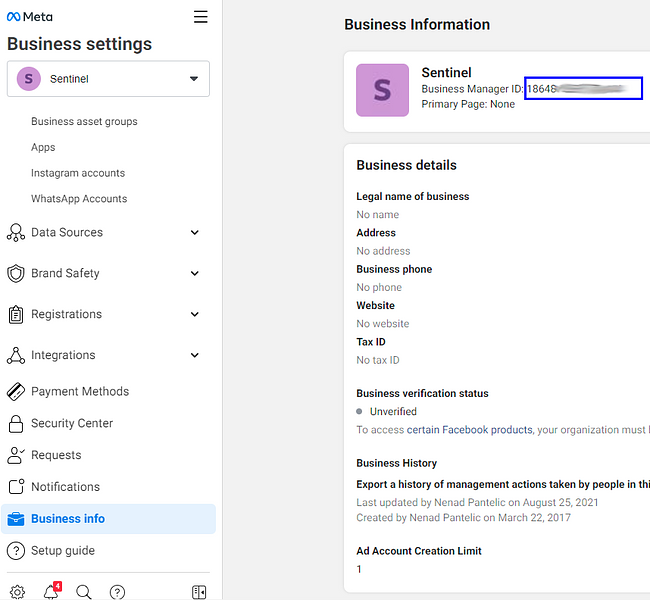
Client: To find your Business ID in Meta Business Manager:
- Go to Business Settings.
- Click Business Info.
- Below Business Manager Info, you’ll see your ID number.
- Copy the number and send to support@fydelia.com with the subject: FB Pixel Business ID
Step 2: Add Client To Fydelia Domains
Fydelia adds client to Fydelia Domains in Business Manager
- Go to Sentinel’s Business Manager
- Click Brand Safety > Domains
- There you select a particular Domain and then click on Assign Partners
- A modal window will pop-up. There you input Business ID of a new client and tick all the checkmarks
- Do this for both:
- fydeliawifi.com
- ondemand.fydeliawifi.com
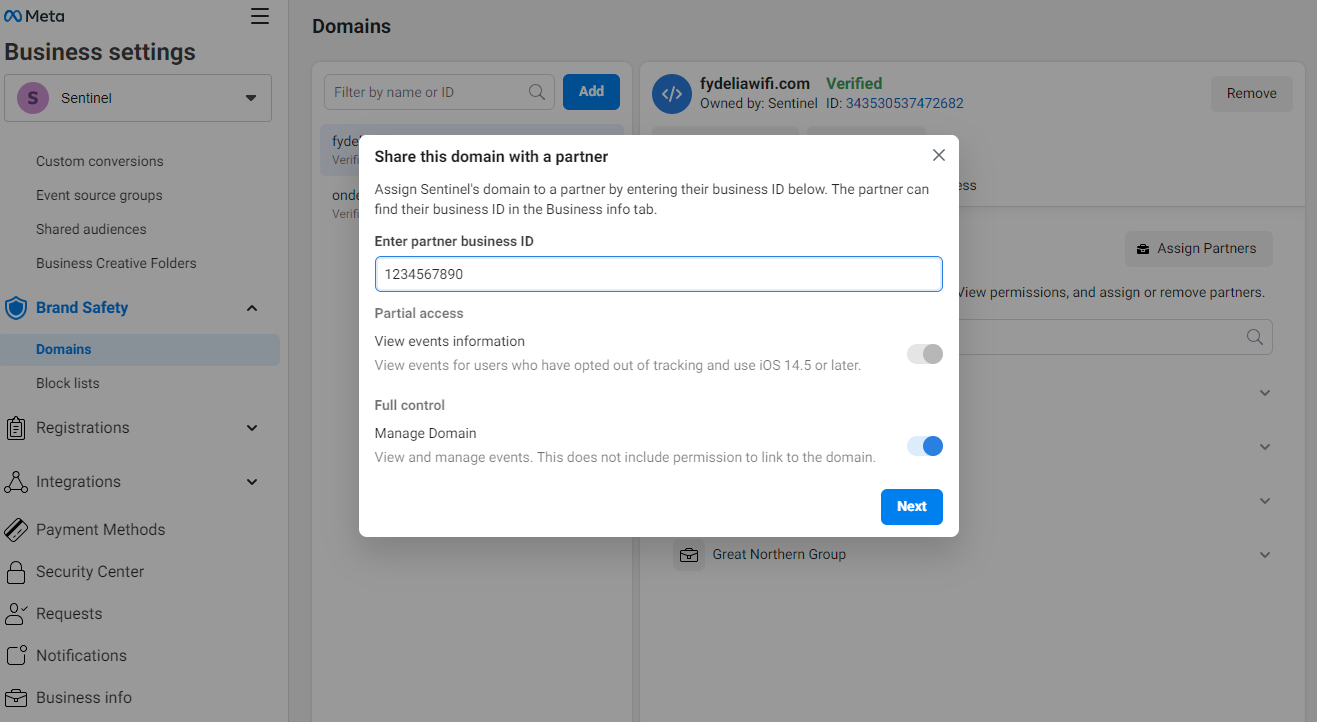
Now, Facebook will allow events to pass-through from our domains to client’s FB pixel
Step 3: Get Facebook Pixel ID
Client now gets their Facebook Pixel ID
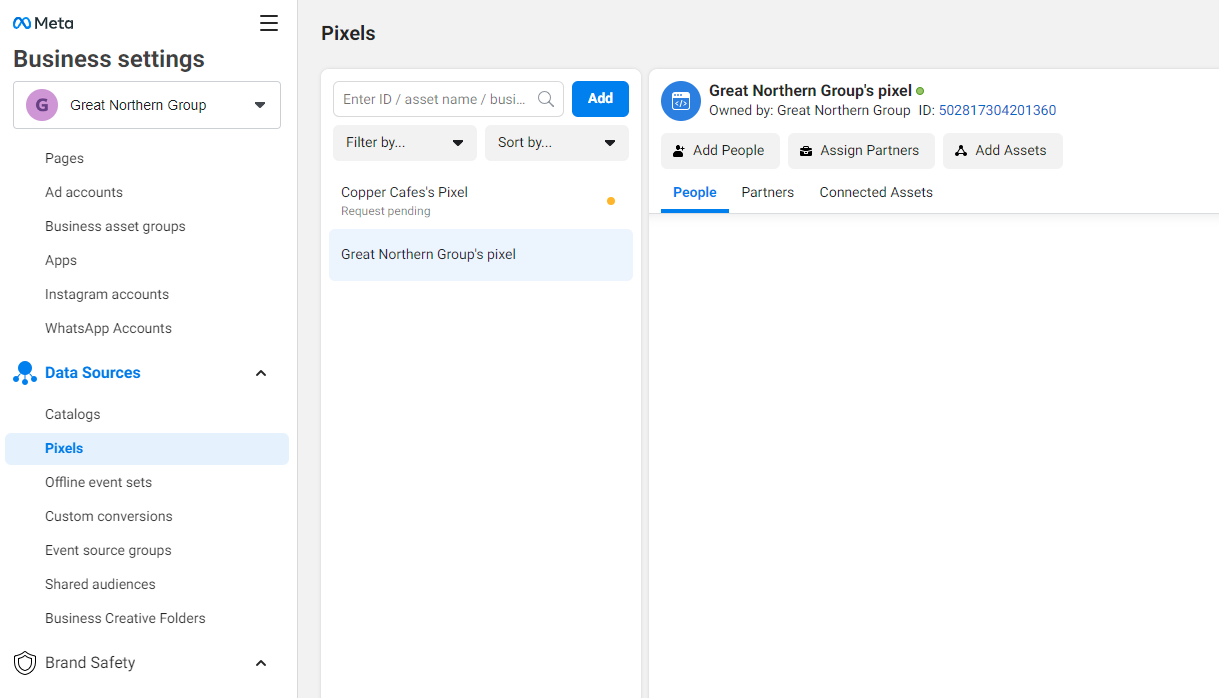
- Go to Business Settings.
- Click Data Sources > Pixels
- From the list of available pixel find the appropriate one (usually indicated with a green dot which represents an active pixel)
- Copy the number and send to support@fydelia.com (in the example below Pixel ID is 502817304201360) with Subject: FB Pixel ID.
Step 4: Update Splash Pages
Fydelia now adds your Facebook Pixel ID to your splash page(s).:
- Find and edit client the splash page
- From Analytics Tools drag the Facebook Pixel widget onto the splash page
- Configure the Facebook Pixel widget and input the FB pixel ID.
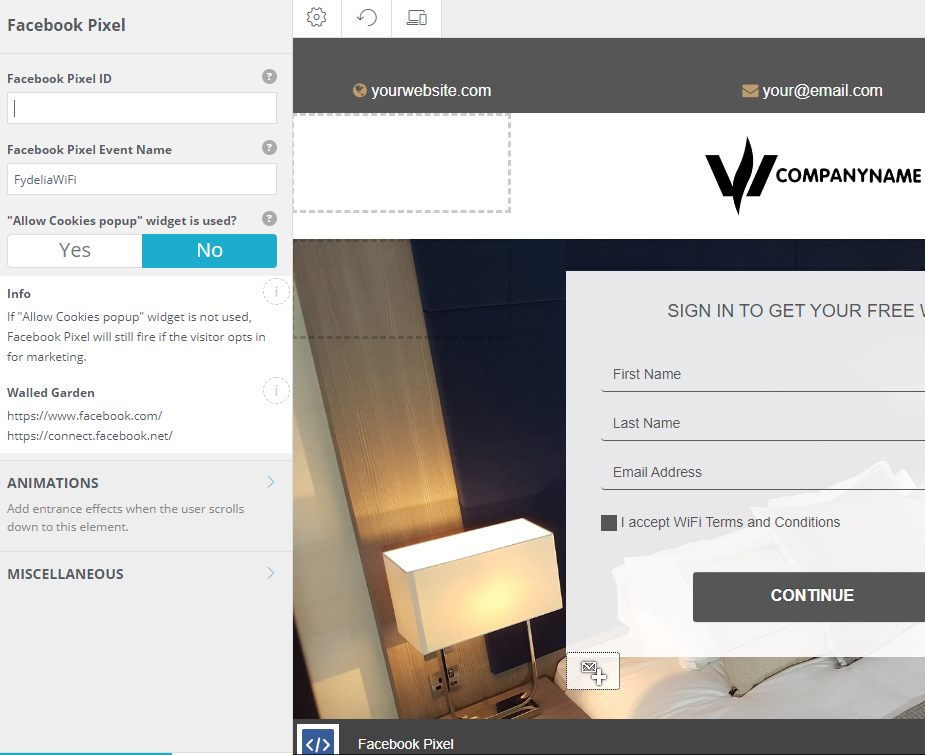
Now, splash pages will send event (FydeliaWiFi or any other custom name) to the client’s Facebook Pixel.
Event will come from the verified domain which client’s Business manager has been assigned to.
Step 5: Create Remarketing Audiences
Client now creates remarketing audiences:
- Go to Business Settings.
- Click Data Sources > Pixels
- Select an active pixel and then click on the Open in Events Manager in the top-right corner of a page.
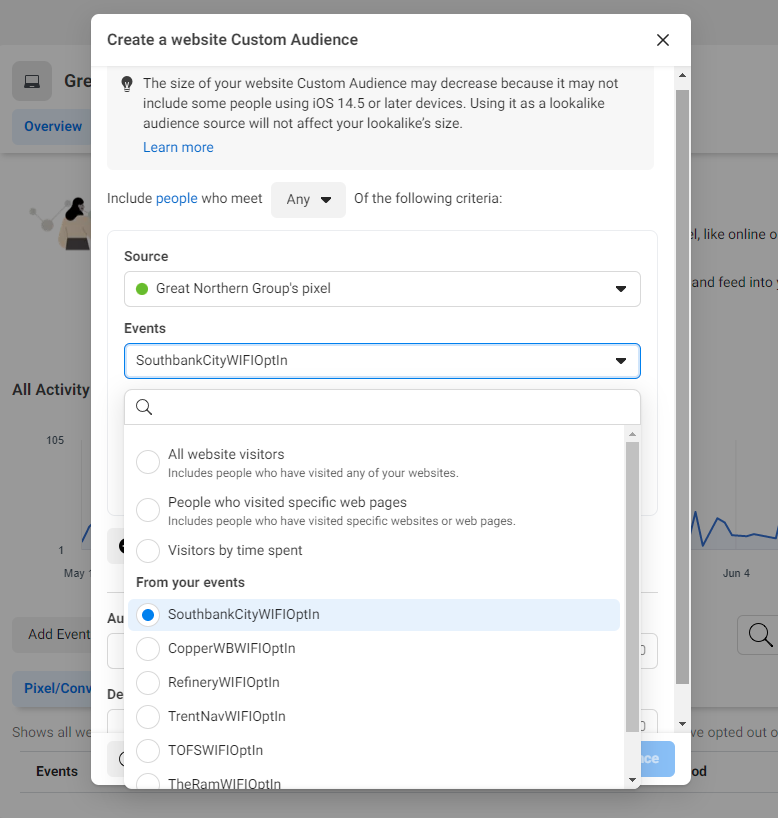
- In the Events manager click on the green Create button, and then select Create Custom Audience.
- A new dialog will pop-up. There select the audience source (all Pixel visitors or from a specific venue).
That’s it! You’re now all set to re-engage with your visitors.