Age-based Marketing Redirects
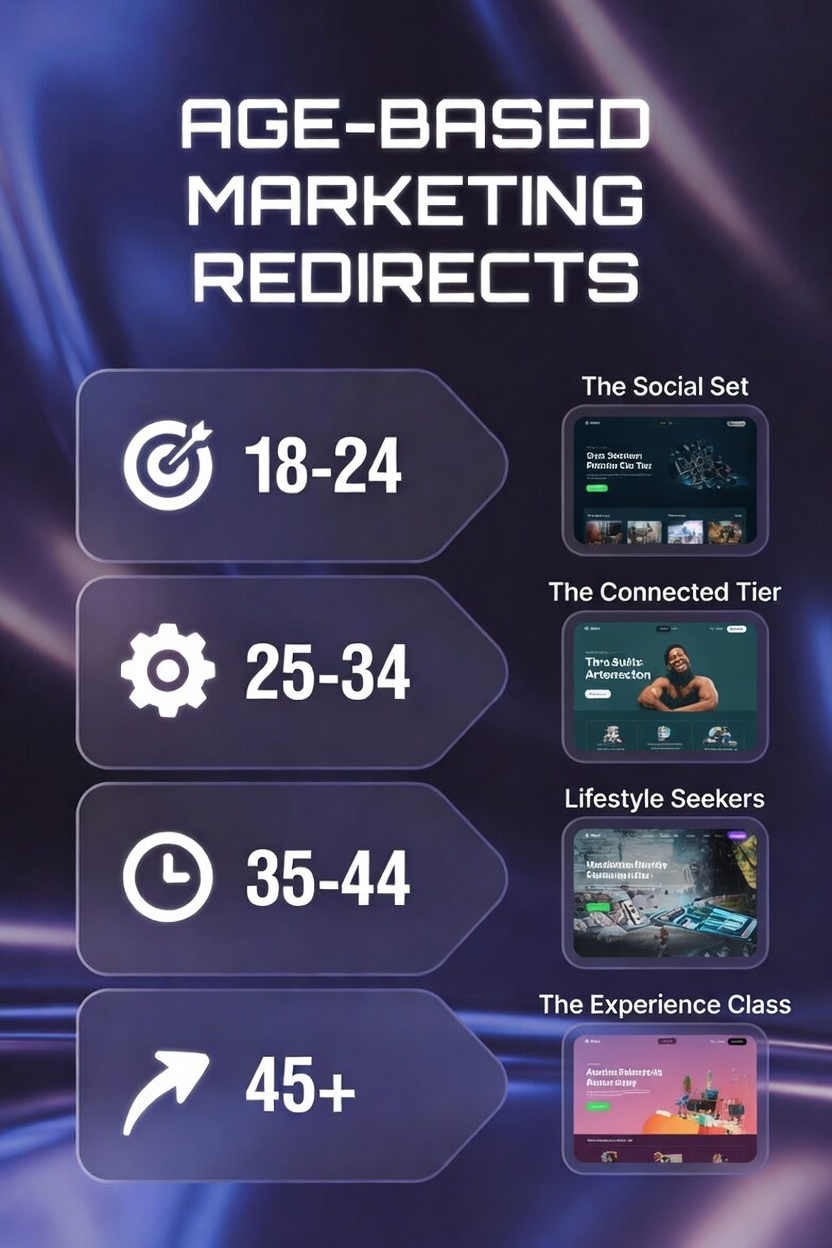
After WiFi login, guests can be automatically directed to tailored content and offers based on their age group — driving stronger engagement and more meaningful interactions.
You deliver the right message to the right audience the moment they connect.
Prerequisites: You must already be in edit mode with your splash page. (See Finding and Editing Your Splash Page.)
With Fydelia you can target age groups with customized marketing messages after WiFi login. This will increase campaign engagement by making your offers more relevant for your guests.
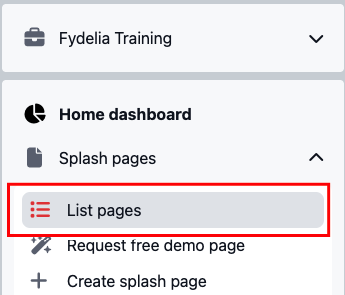
1. Viewing your splash pages - To view and edit your splash pages choose the List Pages from the Splash Pages menu.
2. Edit - To edit your page, hover the settings "cog wheel" and click the EDIT icon.

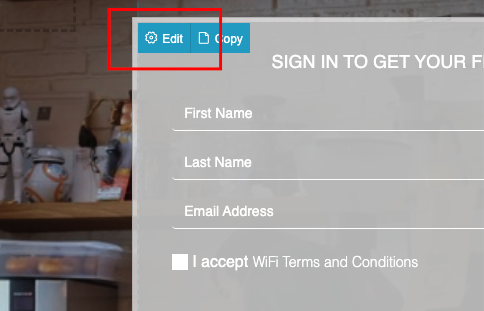
3. Hover over the login form until the blue context menu appears and click Edit.
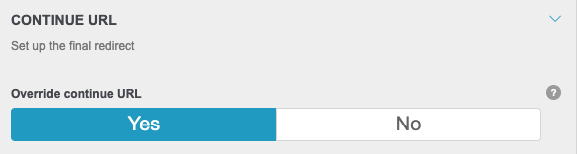
4. Then scroll down the settings until you find the Continue URL setting. Set Override Continue URL the override to Yes.
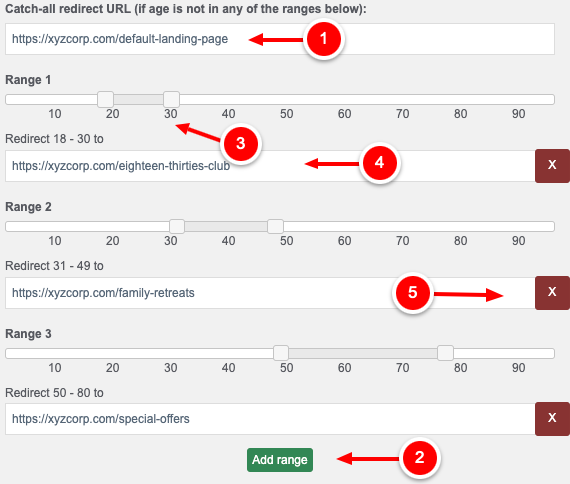
5. Set the Catch-all redirect URL if the guest's age is not in one of your ranges (1). Click Add Range (2) to add a range redirect. Use the sliders to adjust the age range (3) and enter the redirect URL in the box below the range (4).
If you wish to remove range from the list, then click the X to the right of the range (5),
6. Once you are happy with the ranges, click Save Changes in the bottom left of the screen.
7. Now save all of your changes by clicking Publish Changes. You're all set!
• Be sure you are capturing birthday information by enabling the birthday popup in the Multi Step Marketing Popup widget.
• If there are ambiguous overlapping ranges, Fydelia will use the first that matches the criteria.
• If there are any age range gaps, the catch-all URL will be used.
• There may be some hardware platforms that do not support a "continue URL".